Member management
Add members
Admins and moderators can effectively manage members of your community space by adding, removing, or granting them moderation privileges.
Steps
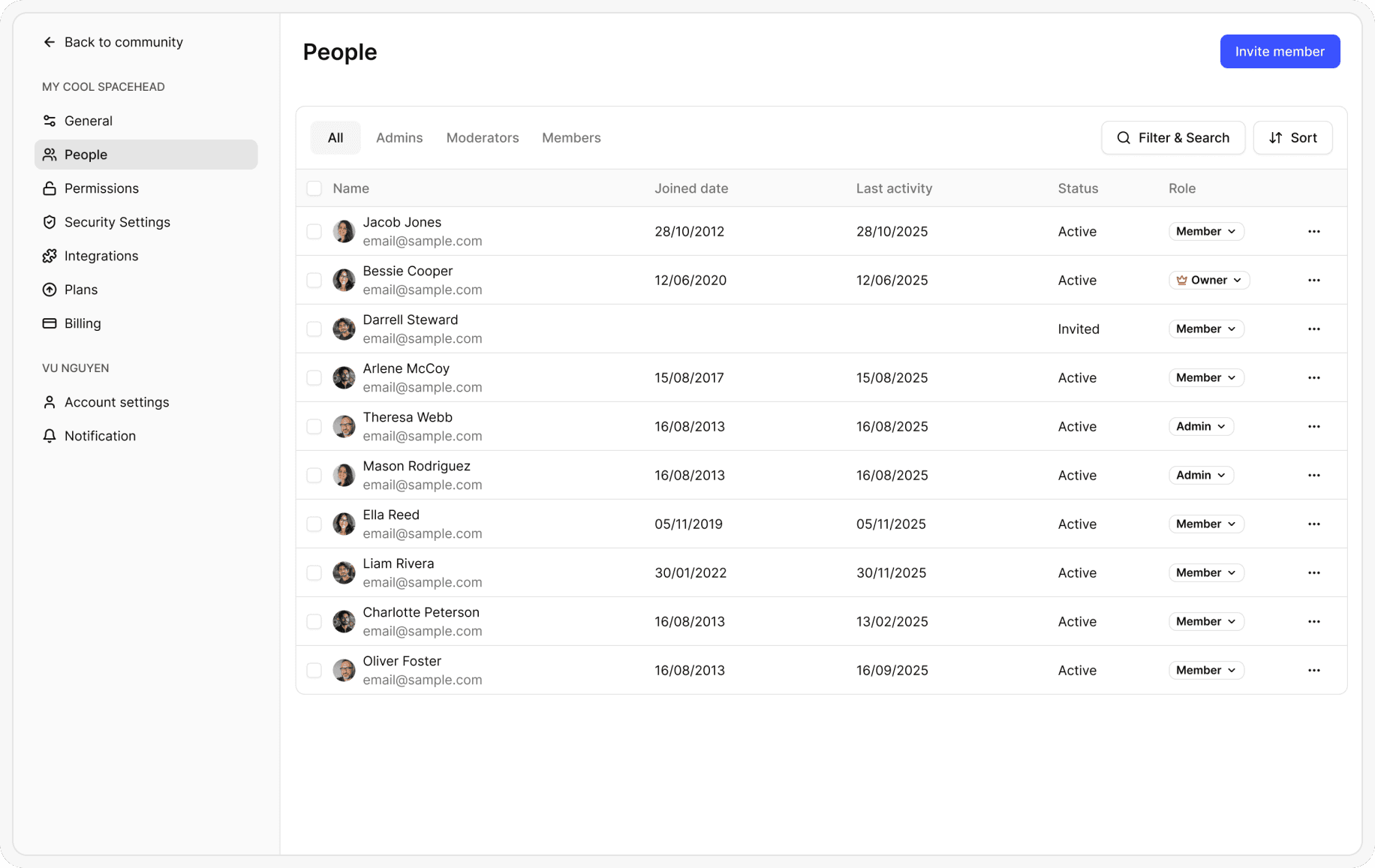
From your HappyIO workspace, go to People
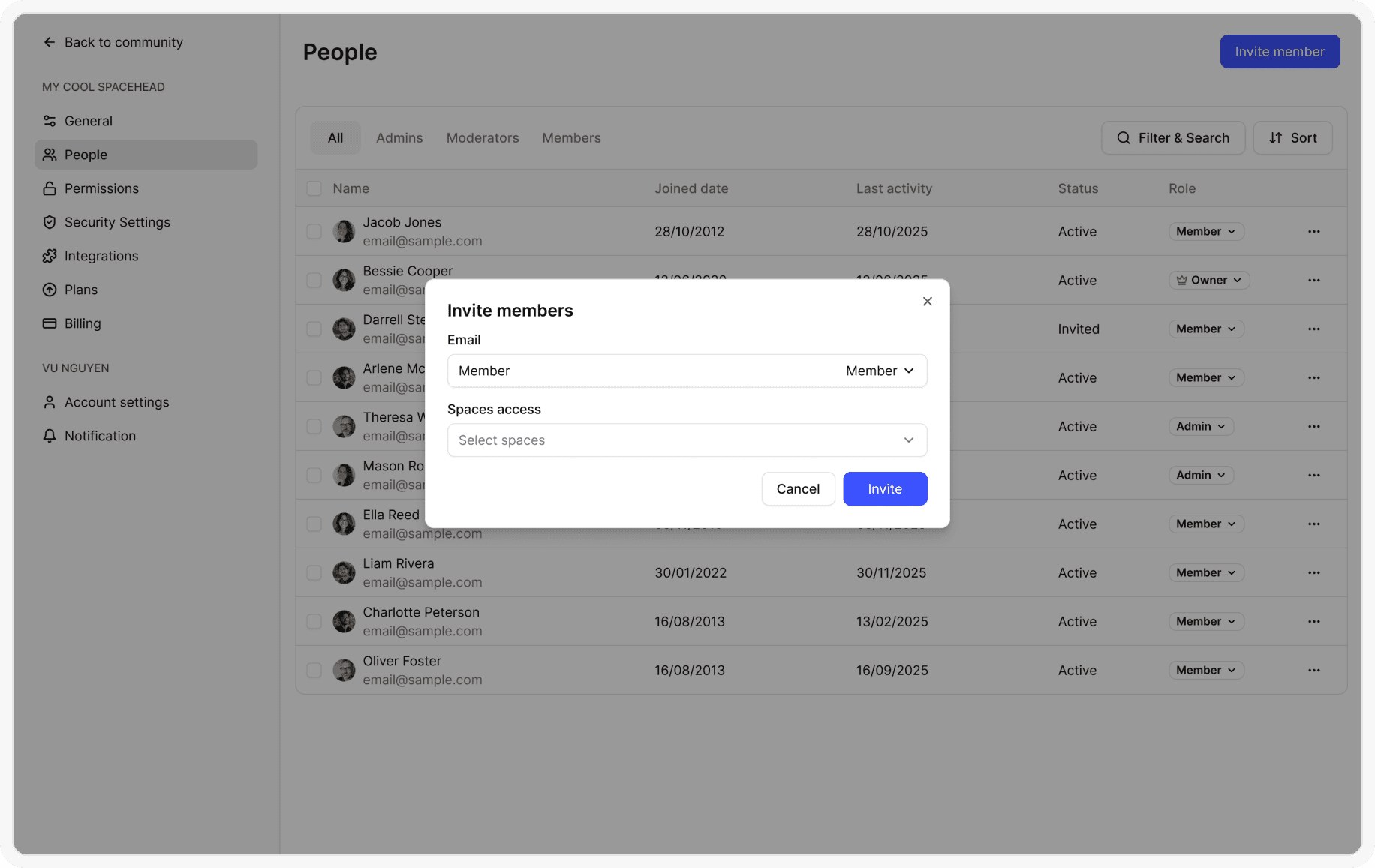
From the People page, click Invite members
Enter members’ email address and select role
Select the space you want to grant free access with above role to your members
Click Invite
Once you have sent the invitation, the invited members will receive an email to access, a member record will be created for each invitee with status “Invited”.
Once members have accepted the invitations, they can access the selected spaces and their status will be updated to “Active”.
Change user role
You can change the role of any space member from Member to Admin or vice versa.
Steps
From your HappyIO workspace, go to People
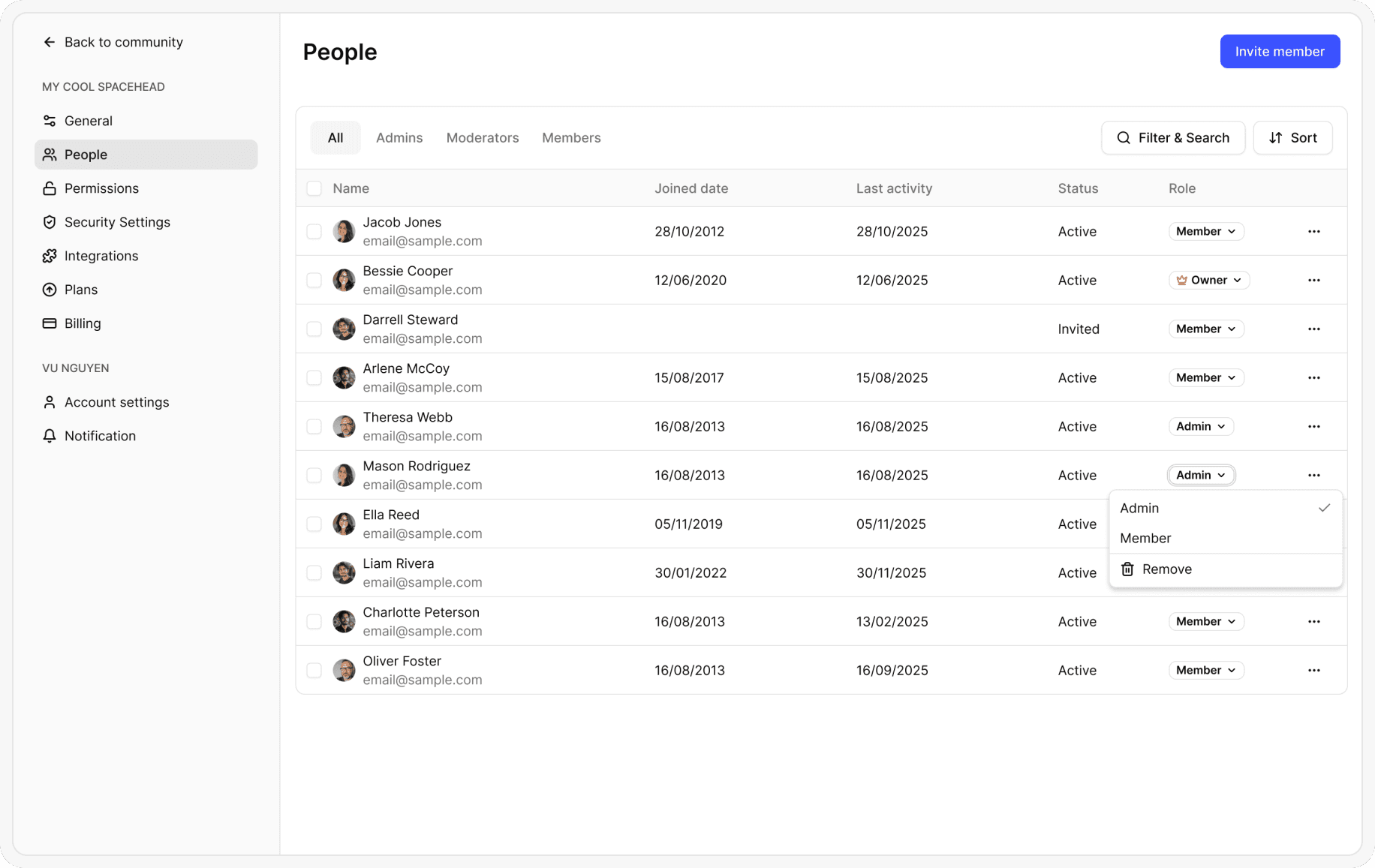
On a row of the member that you want to change role, at the Role column, select a role from the dropdown
In the invite member popup, review user’s role & space then click Invite
Once you have sent the invitation, the user role will change immediately.
Remove member
Remove a member from the community will also delete all data and content from that member.
Steps
From your HappyIO workspace, go to People
On a row of the member that you want to remove, at the Role column, select Remove
In the confirmation popup, click Confirm
Transfer ownership of a workspace
If you’re the Owner of a workspace, you can transfer ownership to another member.
The transfer will happen immediately.
Your role will change from Owner to Admin and you can be removed from the community by another Admin.
Steps
From your HappyIO workspace, go to People
On a row of your name, click the [...] icon
Click Transfer ownership
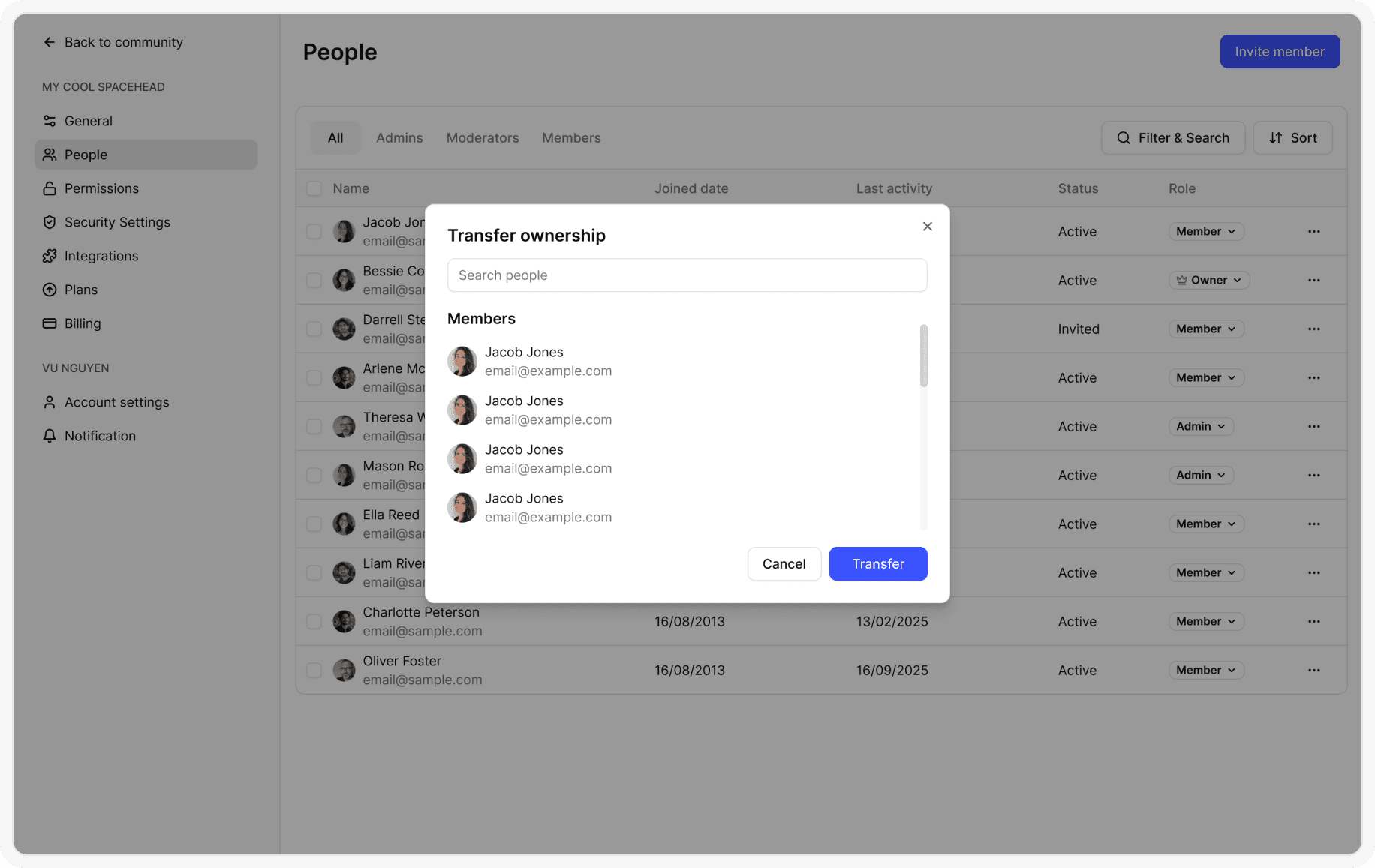
In the Transfer ownership popup, Search for and select the member you'd like to be the new Workspace Owner
Click Transfer
In the confirmation popup, click Confirm