Statuses
Statuses show the progress or current state of a post in your community. They help your team communicate what’s happening with a feature request, roadmap item, release, or incident.
Staff (Owner, Admin, Assigned Moderator) can create, edit, and delete statuses
Members can see statuses on posts but cannot manage them
Each Space can have its own set of statuses
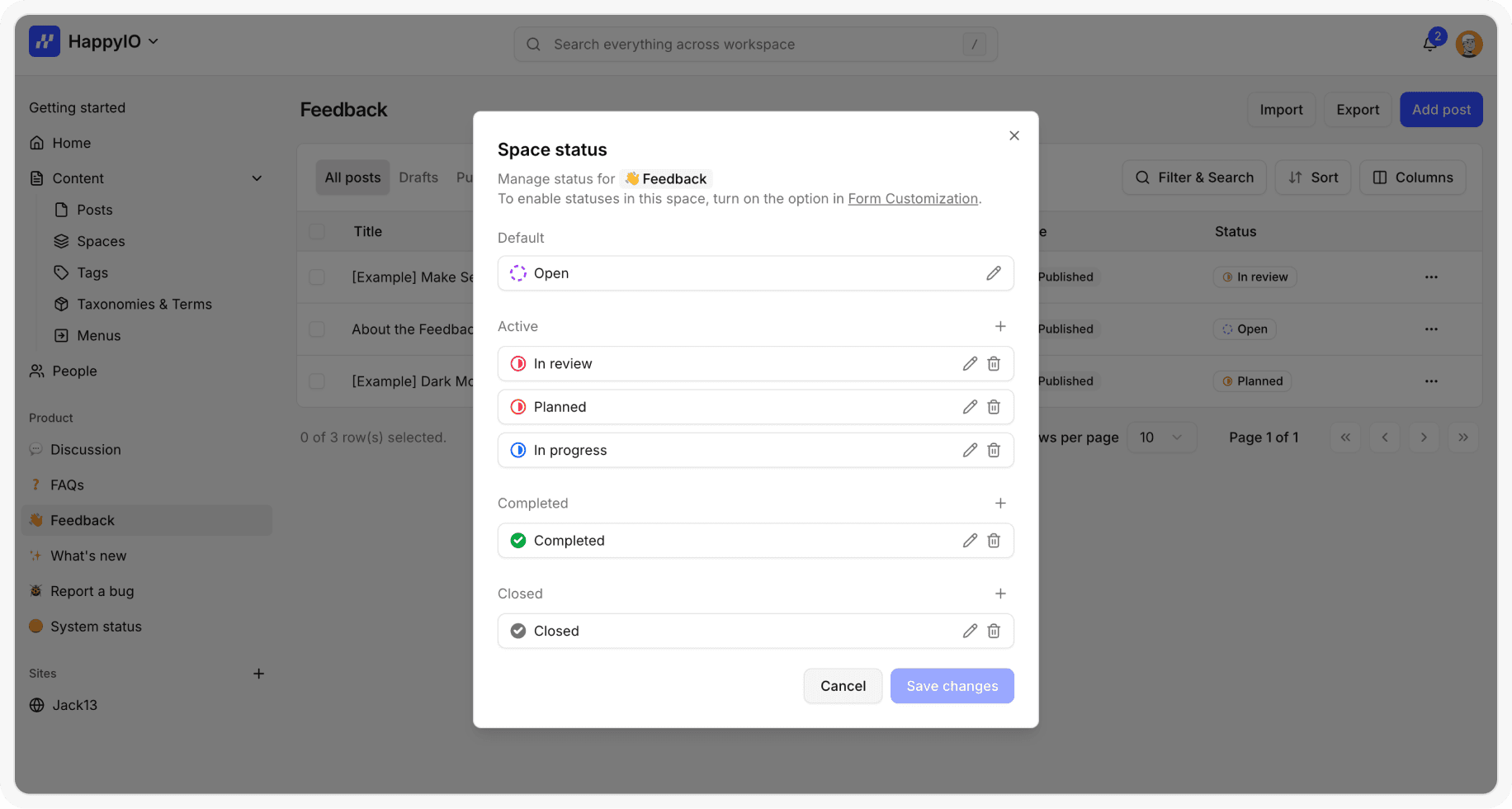
There are 4 status types:
Default: There are only 1 default status when you create a new post and you can rename this status.
Active: Represents work or discussions that are currently in progress.
Completed: Marks a post as finished or delivered.
Closed: Indicates a post will no longer move forward.
Add or edit a status
By default, when you create a new space, it comes with a default status set. You can decide to select and show status for each post of space in [form customization]. Editing a tag will update it on all posts where it’s used.
Steps
From the left sidebar in your workspace, hover over a space and click the [...] icon
Click Statuses
In the Space statuses popup, make any changes:
Click edit icon to edit a status name and icon
Click plus icon at the right side of status type to add 1 more status
Click Save changes
Delete a status
Deleting a tag will not delete the posts that use it. The tag will simply be removed from those posts and its associated spaces.
Steps
From the left sidebar in your workspace, hover over a space and click the [...] icon
Click Statuses
In the Space statuses popup, click trash icon
In the confirmation popup, choose a new status to replace the one being deleted, then click Delete to apply the change to all affected posts