Menus
Adding menus to your community helps your members browse your public site and find important pages.
You can add, remove, change, and view your links and menus from Content > Menus in your workspace. Choose where on your public site you want the menus to display in Public site Design.
If you delete a resource that you use in your store's menus, then any associated menu items are also deleted. For example, if you delete a space that you use for a Roadmap menu item, then both the space and the menu item are deleted.
Add a menu
You can add menu items to build your public site’s menus. Menu items are links to spaces or other URLs.
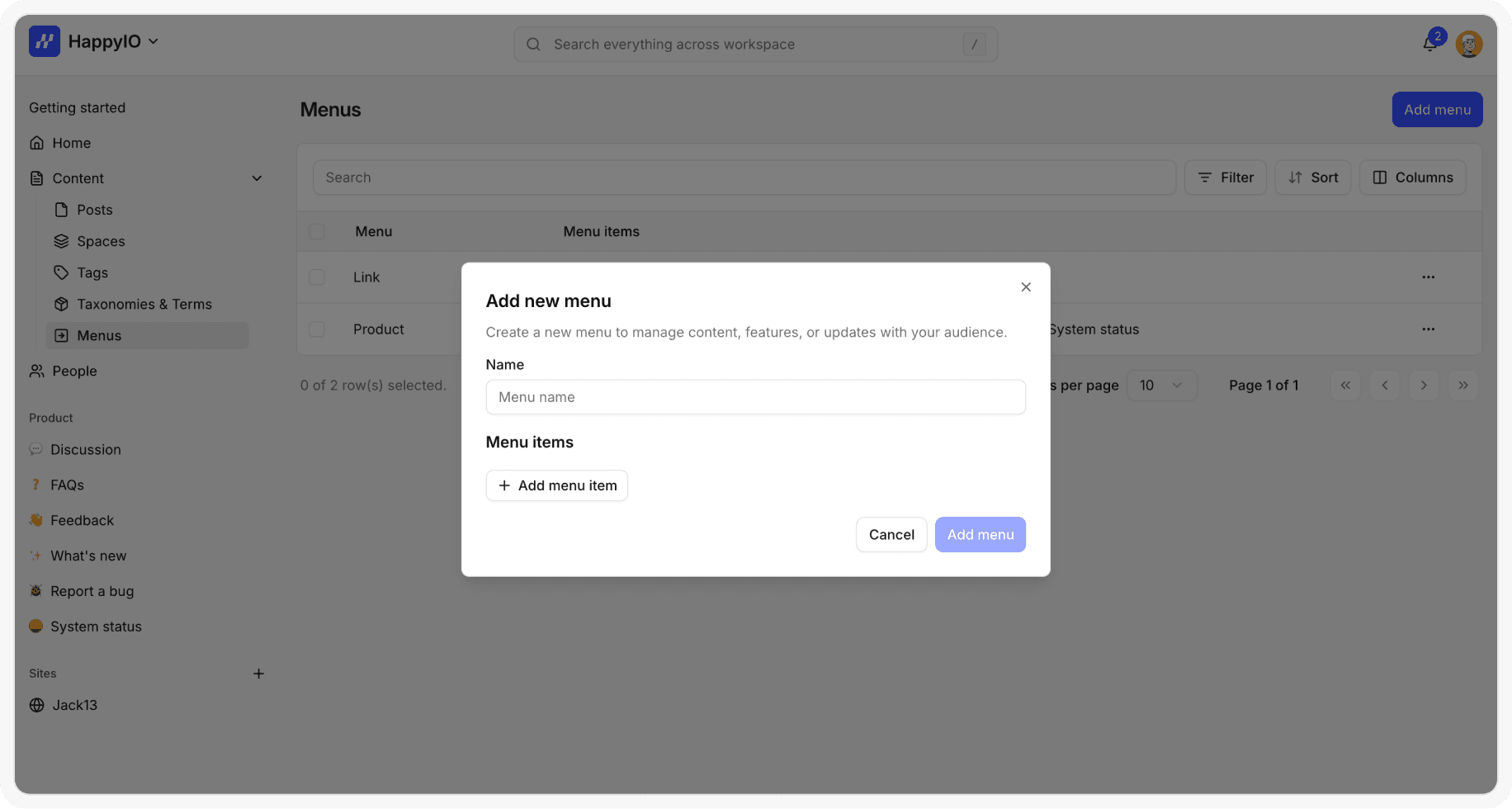
Steps
From your HappyIO workspace, go to Content > Menus
From the Menus page, click Add menu
Enter a name for the menu
Click Add menu item
Enter a name for the menu item
Click the Search or paste link field, and then enter an URL for an external website, or select a space.
Click Add menu item to add more items
Click Add menu to save menu and menu items
Edit a menu
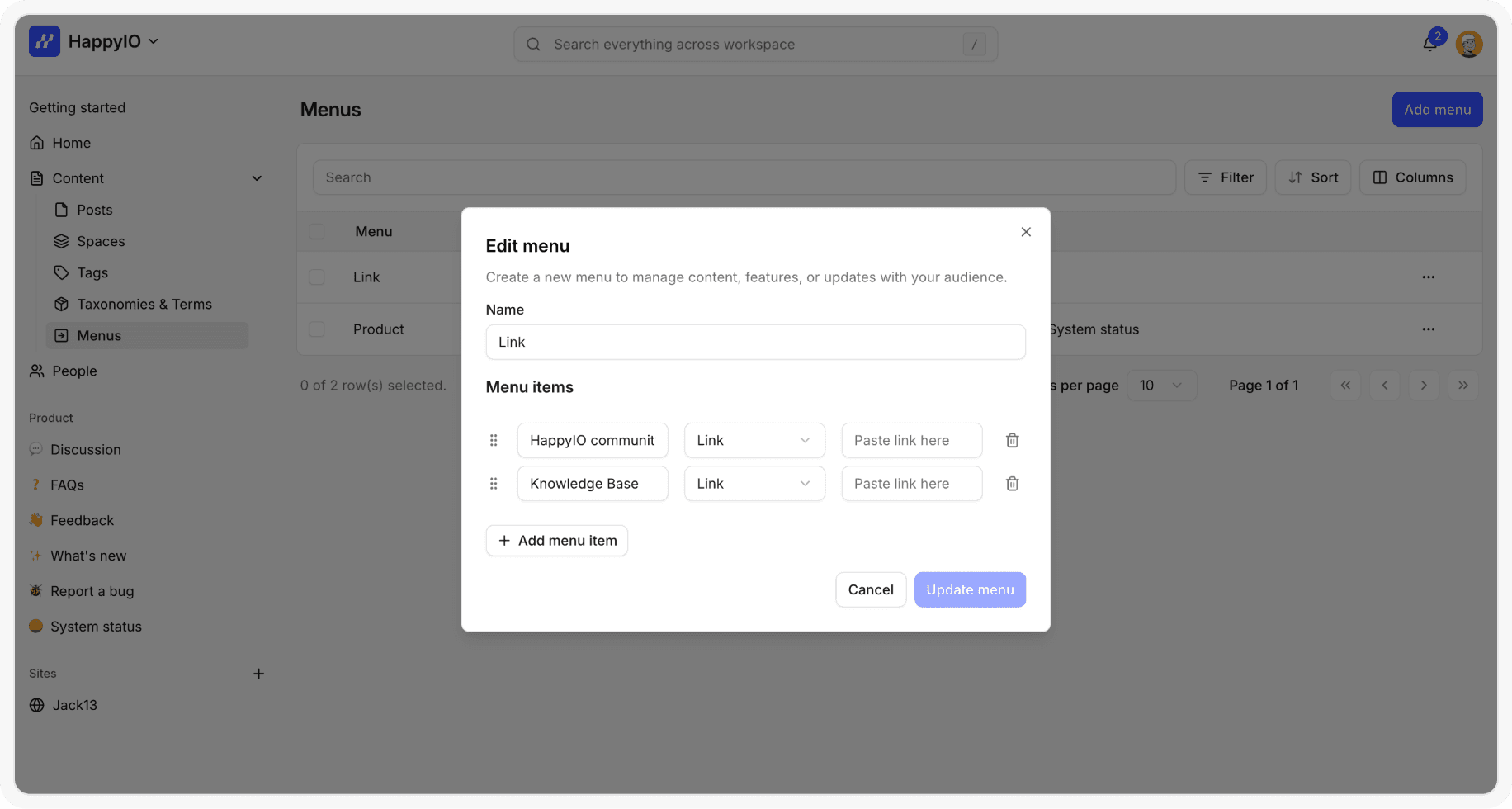
You can edit or remove a menu item, its display on your public sites will be updated.
Steps
From your HappyIO workspace or public site, go to Content > Menus
From the Menus page, click the title of the menu that you want to edit
Click Add menu item or click Edit beside the name of the item
Make any changes:
To change the name of the menu item, enter text in the Name field.
To change the destination of the menu item, click the icon (X) next to the link field, and then enter or select a new destination.
To change the display order of menu items, click and hold the handle icon (⠿) beside the menu item, and then drag the menu item to another position.
Click Save
Delete a menu
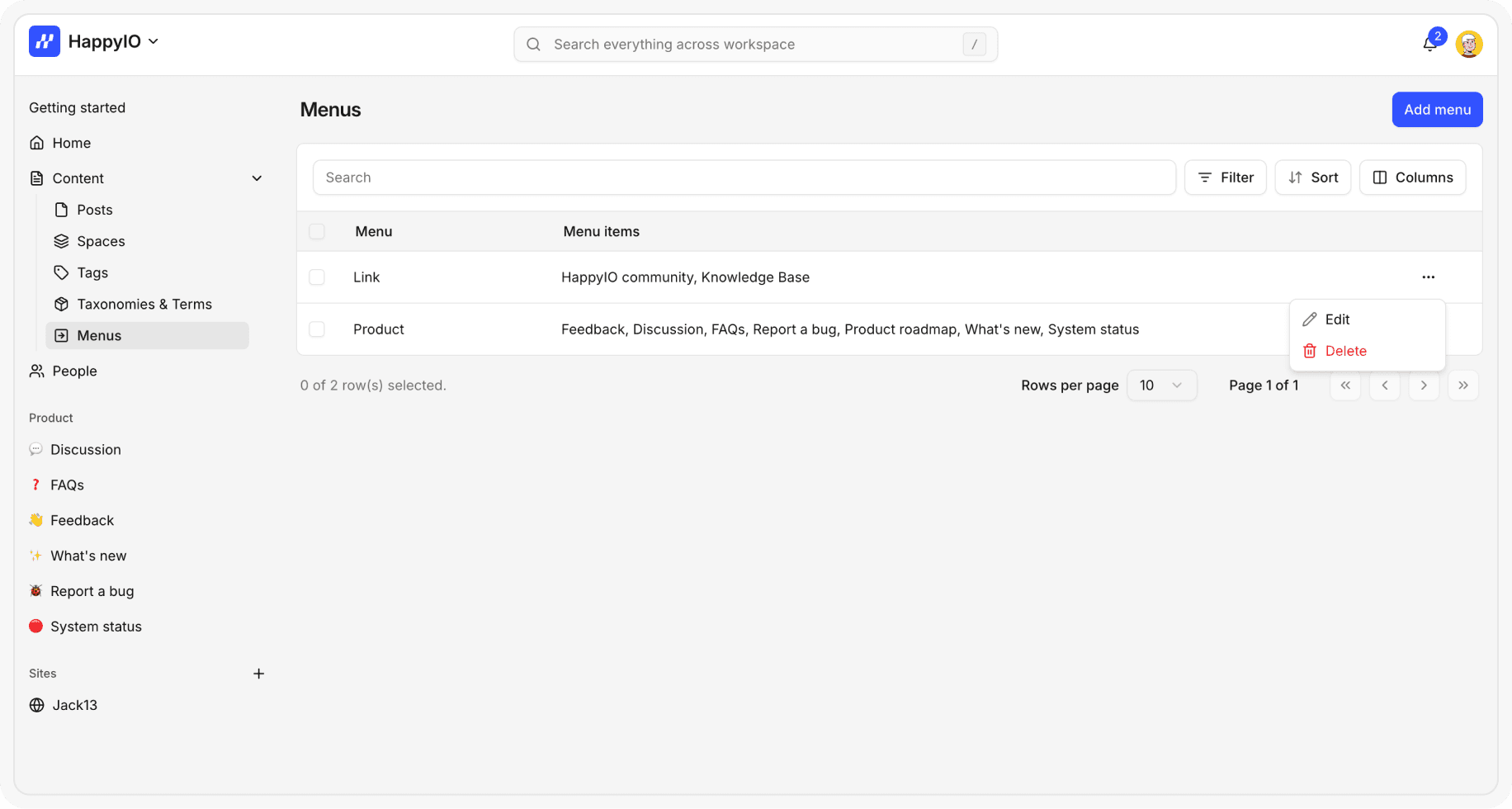
Deleting a menu does not remove the content of its items. However, the menu and all of its items will no longer be visible on your public site.
Steps
From your HappyIO workspace, go to Content > Menus
From the Menus page, click the action of the menu that you want to delete
Click Delete
In the confirmation popup, click Confirm
Set up menus on public site
You can use menus to navigate on public sites for your community
Steps
From your HappyIO workspace, go to Site design > Sections of a selected site
From the Section tab, on Header or Sidebar section, click Add menu or space
Select a menu that you want to display on Header or Sidebar of public site
Click Save